
Related products
Products Shopify recommends for the current product, as cards in a grid or carousel.
munich-demo.myshopify.com
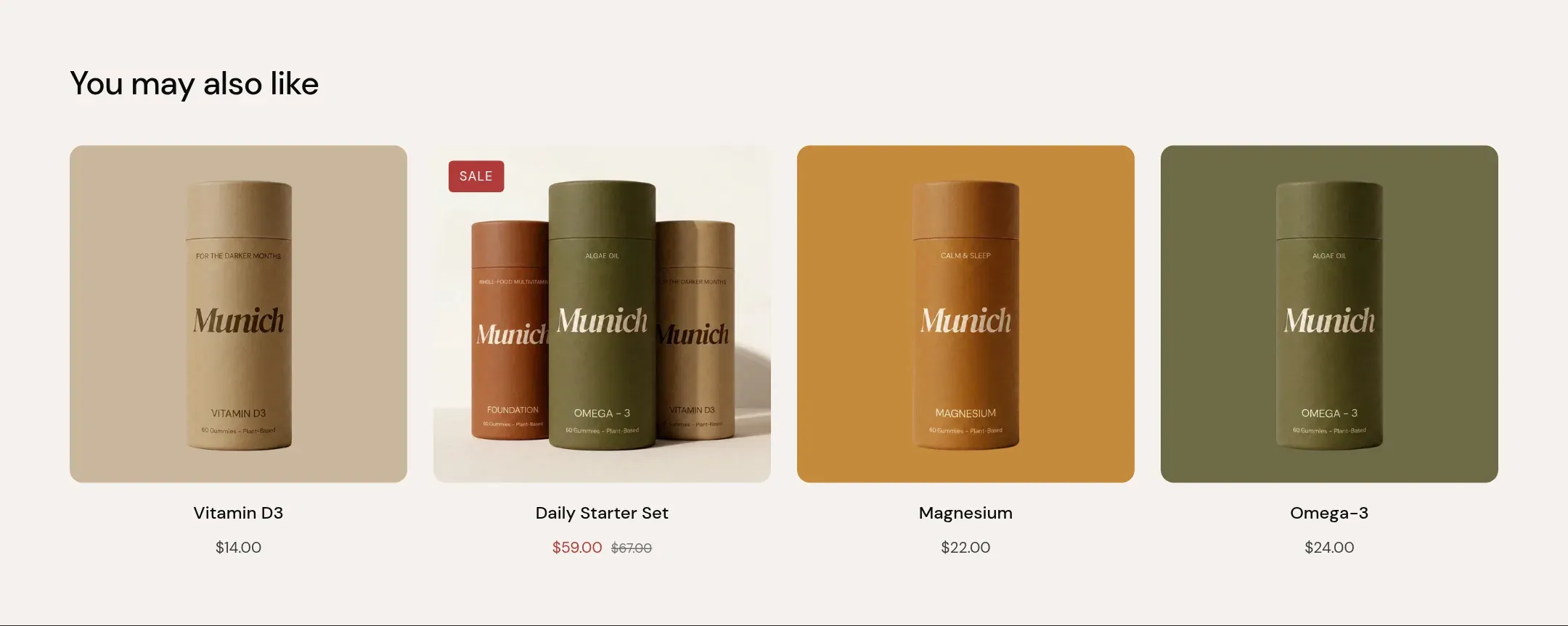
What it does
A section header and product cards for the products Shopify recommends alongside the current one, loaded when the section scrolls into view. Grid or carousel, two to four columns, up to eight products. Cards follow the Product cards settings.
When to use it
At the end of the product page, after the guarantee and before the footer. It is the last chance to keep a visitor who did not want this product.
Setting it up
- Set Products to show and Columns on desktop.
- Write the Heading. “You may also like” is the default.
Settings
| Setting | Type | What it does |
|---|---|---|
| General | ||
| Color scheme | Color scheme | The surface of the section: background, text, buttons and accent as one contrast-checked set. Schemes are edited under Theme settings, Colors. |
| Width | Select | Fixed width keeps the section inside the page margin so it lines up with the sections around it. Full width runs it to the edge of the screen.Options: Fixed width, Full width · Default: Fixed width |
| Layout | Select | Grid lays the cards out in rows. Carousel puts them in one scrollable row with arrows.Options: Grid, Carousel · Default: Grid |
| Swipe on mobile | Checkbox | On a phone, lays the items out in one row that the visitor swipes through, instead of stacking them.Default: off |
| Header | ||
| Heading | Text | The heading of the section. Italicize a word to set it in the accent font.Default: You may also like |
| Size | Select | How large the heading renders, on the shared type scale from Theme settings, Typography.Options: Large, Medium, Small, Extra small · Default: Medium |
| Accent font | Select | Highlight words puts the italicized words on the accent font. Whole heading sets the entire line in it. Off keeps the heading font throughout.Options: Highlight words, Whole heading, Off · Default: Highlight words |
| Text | Rich text | A short paragraph under the heading. Keep it to one or two sentences. |
| Content alignment | Select | Whether heading, text and buttons sit left, centered or right inside the section.Options: Left, Center · Default: Left |
| Link label | Text | Text of the link at the end of the section header, such as View all. Leave empty for no link. |
| Link | Link | Where the header link leads. |
| Grid | ||
| Products to show | Range | How many recommended products to show, at most.2 to 8 · Default: 4 |
| Columns on desktop | Select | How many items sit in one row on a desktop screen.Options: 2, 3, 4 · Default: 4 |
| Columns on mobile | Select | How many items sit in one row on a phone.Options: 1, 2 · Default: 2 |
| Section padding | ||
| Top padding | Range | Space between the top of the section and its content. On a phone the theme tightens it by a quarter.0 to 120 px · Default: 60 |
| Bottom padding | Range | Space between the content and the bottom of the section. On a phone the theme tightens it by a quarter.0 to 120 px · Default: 60 |
Tips
- The recommendations come from Shopify, based on what is bought together and what is similar. They improve as the store gets orders; a new store shows products from the same collection.
- The section loads its products when it comes into view, so it does not slow down the top of the product page.
- Set Products to show to a multiple of Columns on desktop, so the last row is full.