
How it works
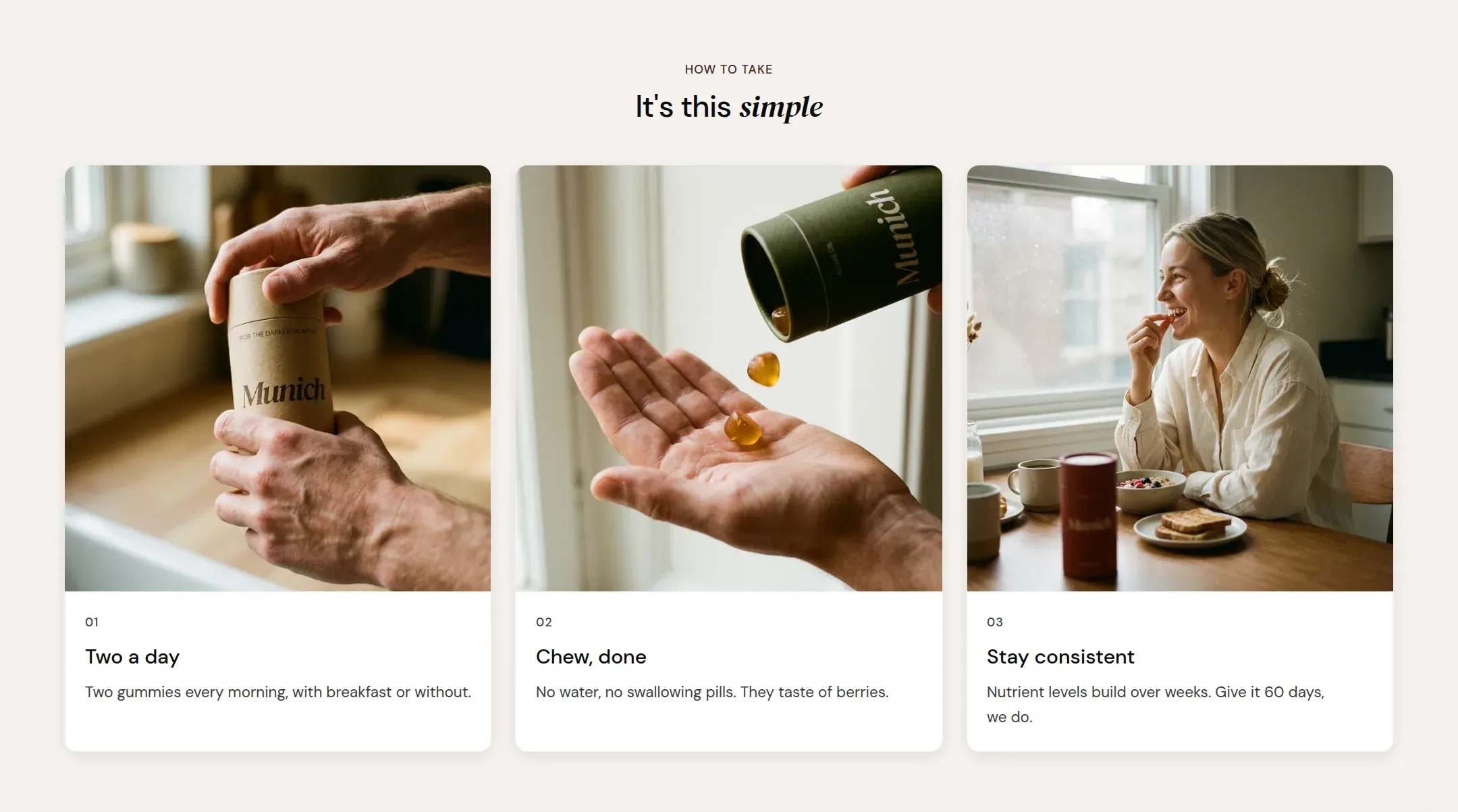
Numbered steps with an image and a line of text each, as cards or plain, three across on desktop and swiped on a phone.
munich-demo.myshopify.com
What it does
A section header and a row of steps. Each step has an image, a number, a title and a line of text. Cards puts every step on its own card in a scheme of your choice; Plain shows them on the section surface. On a phone the steps swipe as a row.
When to use it
How to take it, how to set it up, how the order arrives. On the product page directly after the buy box, so the first thing after the price is how simple it is. On the home page it can replace Multicolumn where the steps are the argument.
Blocks
- Step: image, title and text. The number comes from the order of the blocks.
Setting it up
- Add three Step blocks, upload one image each, write a title of two to four words and one line of text.
- Choose Layout and, for cards, the Card color scheme.
- Set Image ratio to match your photos.
Settings
| Setting | Type | What it does |
|---|---|---|
| General | ||
| Color scheme | Color scheme | The surface of the section: background, text, buttons and accent as one contrast-checked set. Schemes are edited under Theme settings, Colors. |
| Width | Select | Fixed width keeps the section inside the page margin so it lines up with the sections around it. Full width runs it to the edge of the screen.Options: Fixed width, Full width · Default: Fixed width |
| Layout | Select | Cards puts each step on a card in the card color scheme. Plain shows the steps on the section surface.Options: Cards, Plain · Default: Cards |
| Card color scheme | Color scheme | The surface of each card, separate from the section behind it, so cards can stand off the section background. |
| Show step numbers | Checkbox | Shows the step number on each step, taken from the order of the blocks.Default: on |
| Swipe on mobile | Checkbox | On a phone, lays the items out in one row that the visitor swipes through, instead of stacking them.Default: on |
| Header | ||
| Label | Text | A small kicker above the heading, such as How to take. |
| Heading | Text | The heading of the section. Italicize a word to set it in the accent font.Default: It's this simple |
| Size | Select | How large the heading renders, on the shared type scale from Theme settings, Typography.Options: Large, Medium, Small, Extra small · Default: Medium |
| Heading level | Select | Page heading is the one heading that names what the whole page is about; use it once per page, usually on the first section. Everything else is a section heading.Options: Page heading, Section heading · Default: Section heading |
| Accent font | Select | Highlight words puts the italicized words on the accent font. Whole heading sets the entire line in it. Off keeps the heading font throughout.Options: Highlight words, Whole heading, Off · Default: Highlight words |
| Text | Rich text | A short paragraph under the heading. Keep it to one or two sentences. |
| Content alignment | Select | Whether heading, text and buttons sit left, centered or right inside the section.Options: Left, Center · Default: Center |
| Grid | ||
| Image ratio | Select | The shape the step images are cropped to.Options: Landscape, Portrait, Square, Adapt to image · Default: Landscape |
| Columns on desktop | Select | How many items sit in one row on a desktop screen.Options: 2, 3, 4 · Default: 3 |
| Columns on mobile | Select | How many steps are visible at once on a phone, where the steps swipe as a row.Options: 1, 2, 3 · Default: 2 |
| Section padding | ||
| Top padding | Range | Space between the top of the section and its content. On a phone the theme tightens it by a quarter.0 to 120 px · Default: 60 |
| Bottom padding | Range | Space between the content and the bottom of the section. On a phone the theme tightens it by a quarter.0 to 120 px · Default: 60 |
Step block
| Setting | Type | What it does |
|---|---|---|
| Image | Image | The picture of this step. |
| Title | Text | The step title, two to four words.Default: Step title |
| Text | Rich text | One line on what to do in this step.Default: <p>Say what to do in this step, in a line.</p> |
This section also accepts app blocks, so apps that provide one can add content here.
Tips
- Three steps. Two is not a process and five is a manual. If you have more, group them.
- Every step image should have the same shape and the same subject distance. The section is a sequence; the pictures have to look like frames of one film.
- On a phone the steps sit side by side and are swiped. Columns on mobile decides how many are visible at once; 2 shows the edge of the next step, which tells the visitor to swipe.