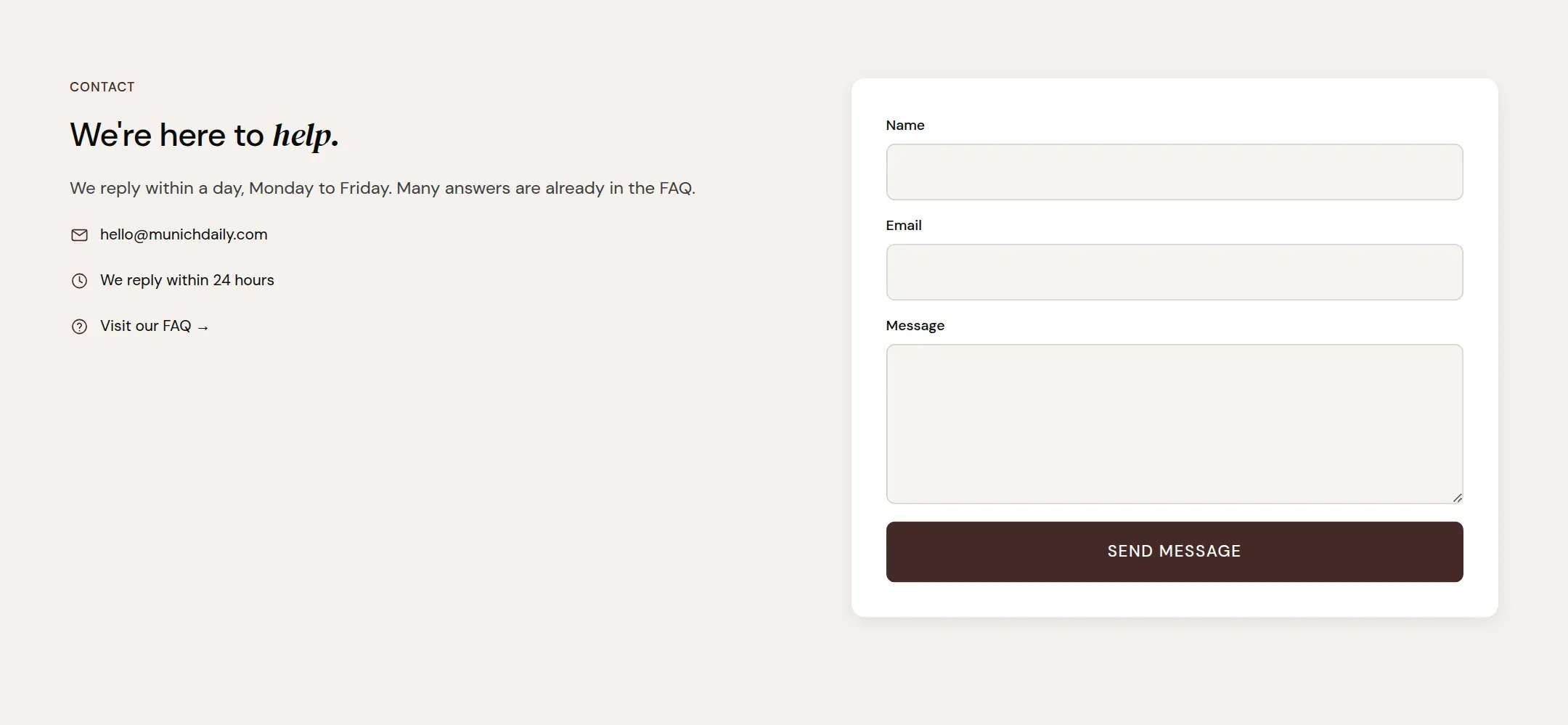
The contact page as two columns: an invitation with your contact details, and the form with fields you define.
munich-demo.myshopify.com
The contact page with the invitation on the left and the form card on the right.
What it does
The main section of the contact page. On the left, the Contact invitation block: a
label, a heading, a text and contact detail lines (email, phone, hours). On the right,
the Contact form block on a card: the fields you add, a button and a success message.
Sending uses Shopify’s contact form, which emails you the message.
When to use it
On the page template page.contact, assigned to your contact page in the admin. The
demo also puts the FAQ page’s Contact options above the FAQ, for the visitor who would
rather not write.
Blocks
Contact invitation: holds Label, Heading, Text and Contact detail blocks. A contact
detail is an icon with a line, such as an email address that is a link.
Contact form: holds Contact field blocks and has the button label and the success
message. A contact field has a type (name, email, phone, message, text, number), a
label, a placeholder and whether it is required.
Setting it up
In the invitation, write the heading and add a Contact detail for email and one
for reply time.
In the form, add fields: Name, Email (required), Message (required).
Write the Success message.
Settings
Setting
Type
What it does
General
Color scheme
Color scheme
The surface of the section: background, text, buttons and accent as one contrast-checked set. Schemes are edited under Theme settings, Colors.
Width
Select
Fixed width keeps the section inside the page margin so it lines up with the sections around it. Full width runs it to the edge of the screen.Options: Fixed width, Full width · Default: Fixed width
Section padding
Top padding
Range
Space between the top of the section and its content. On a phone the theme tightens it by a quarter.0 to 120 px · Default: 72
Bottom padding
Range
Space between the content and the bottom of the section. On a phone the theme tightens it by a quarter.0 to 120 px · Default: 100
Contact invitation block
No settings
Label block
Setting
Type
What it does
Text
Text
A short kicker above the heading, such as a chapter name. Rendered small, spaced and uppercase.Default: Add a short label
Alignment
Select
Overrides the alignment of the section for this block only.Options: Inherit, Left, Center, Right · Default: Inherit
Heading block
Setting
Type
What it does
Heading
Text
The heading text. Italicize a word to set it in the accent font.Default: Add a heading that says what you stand for
Size
Select
How large the heading renders, on the shared type scale.Options: Large, Medium, Small, Extra small · Default: Medium
Heading level
Select
Page heading is the one heading that names what the page is about; use it once per page. Section heading and Subheading are for everything else.Options: Page heading, Section heading, Subheading · Default: Section heading
Accent font
Select
Highlight words puts the italicized words on the accent font. Whole heading sets the entire line in it. Off keeps the heading font.Options: Highlight words, Whole heading, Off · Default: Highlight words
Alignment
Select
Overrides the alignment of the section for this block only.Options: Inherit, Left, Center, Right · Default: Inherit
Text block
Setting
Type
What it does
Text
Rich text
A short kicker above the heading, such as a chapter name. Rendered small, spaced and uppercase.Default: <p>Use this text to explain the product, the story, or the promise behind it.</p>
Size
Select
How large the heading renders, on the shared type scale.Options: Large, Medium, Small · Default: Medium
Alignment
Select
Overrides the alignment of the section for this block only.Options: Inherit, Left, Center, Right · Default: Inherit
Contact detail block
Setting
Type
What it does
Icon
Select
The icon in front of the line: email, phone, clock and so on.Options: Email, Phone, Chat, Reply time, FAQ, None · Default: Email
Text
Text
A short kicker above the heading, such as a chapter name. Rendered small, spaced and uppercase.Default: Add a line of contact info
Link
Link
Makes the line a link. Use mailto: for an email address and tel: for a phone number.
Contact form block
Setting
Type
What it does
Form
Button label
Text
The text on the send button.Default: Send message
Success message
Text
What the page says after the message was sent. Say what happens next.Default: Thanks! We'll get back to you within 24 hours.
Contact field block
Setting
Type
What it does
Field type
Select
What the field asks for. Name, email and message are the ones every form needs; phone, text and number are optional extras.Options: Name, Email, Phone, Message, Text, Number · Default: Text
Label
Text
The label above the field.
Placeholder
Text
The hint text inside the empty field.
Required
Checkbox
Whether the visitor has to fill the field before sending.Default: off
Tips
Messages arrive at the sender email of your store (Settings, Notifications). There is no app and nothing to connect.
Keep the form to four fields. Name, email, message, and one more if you need it. Every extra field costs replies.
Set the message field to required and the phone field to optional. The theme marks required fields for the visitor.
The success message is shown on the page after sending. Write what happens next, for example how quickly you reply.