
Featured collection
Product cards from one collection, as a grid or a carousel, with a heading and a link to the collection.
munich-demo.myshopify.com
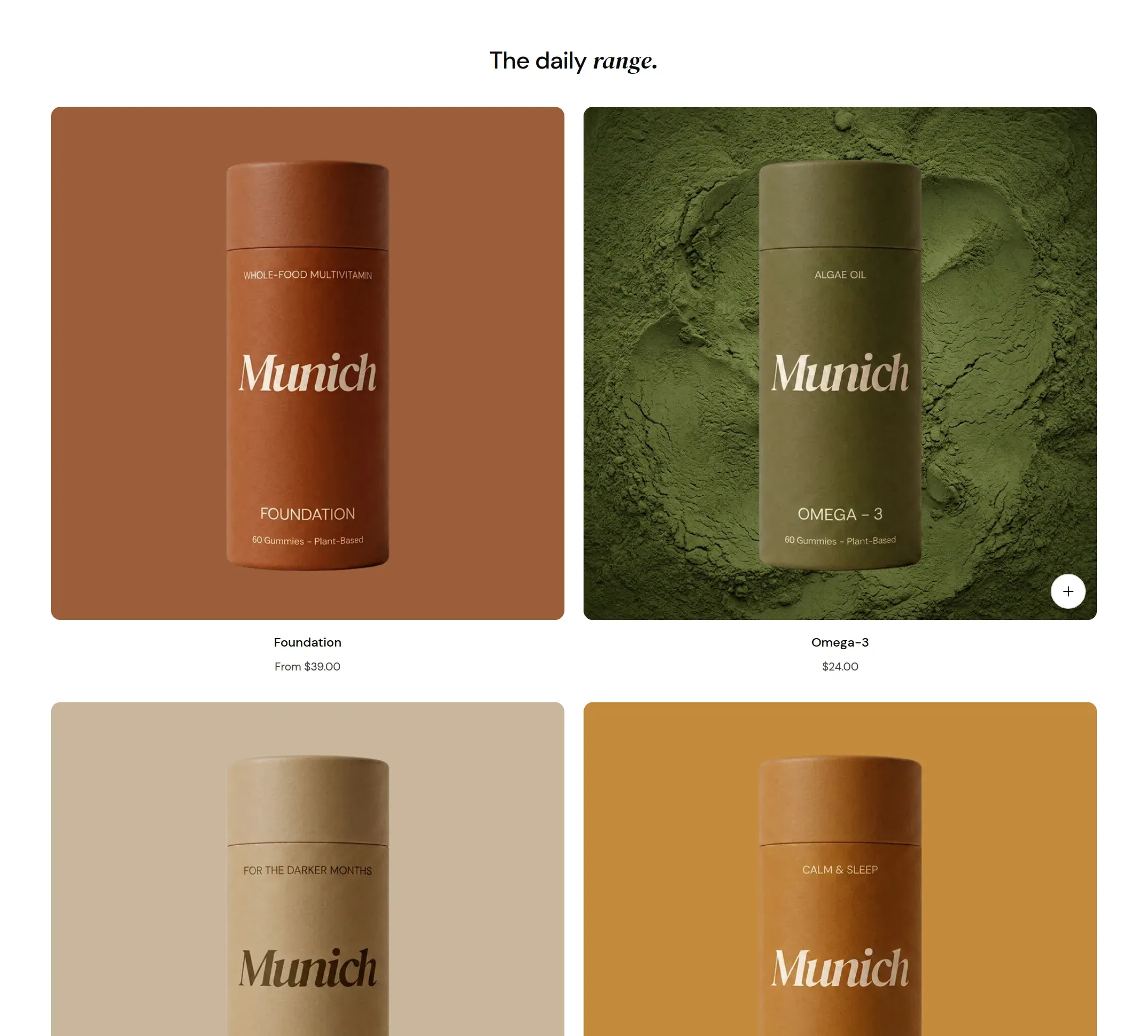
What it does
A section header and product cards from one collection, up to twelve, in a grid of two to four columns or a carousel. The header link leads to the collection. Cards follow the Product cards settings: tile, hover, quick add, quick view.
When to use it
“Shop the range” on the home page, the other products on the about page, a themed selection on a landing page. It is the section that turns a story page into a shop.
Setting it up
- Pick the Collection and set Products to show.
- Set Columns on desktop and Columns on mobile, or Layout → Carousel.
- Write the Heading and set the Link label to something like “View all”.
Settings
| Setting | Type | What it does |
|---|---|---|
| General | ||
| Color scheme | Color scheme | The surface of the section: background, text, buttons and accent as one contrast-checked set. Schemes are edited under Theme settings, Colors. |
| Width | Select | Fixed width keeps the section inside the page margin so it lines up with the sections around it. Full width runs it to the edge of the screen.Options: Fixed width, Full width · Default: Fixed width |
| Layout | Select | Grid lays the cards out in rows. Carousel puts them in one scrollable row with arrows.Options: Grid, Carousel · Default: Grid |
| Swipe on mobile | Checkbox | On a phone, lays the items out in one row that the visitor swipes through, instead of stacking them.Default: off |
| Header | ||
| Heading | Text | The heading of the section. Italicize a word to set it in the accent font.Default: Shop the range |
| Size | Select | How large the heading renders, on the shared type scale from Theme settings, Typography.Options: Large, Medium, Small, Extra small · Default: Medium |
| Heading level | Select | Page heading is the one heading that names what the whole page is about; use it once per page, usually on the first section. Everything else is a section heading.Options: Page heading, Section heading · Default: Section heading |
| Accent font | Select | Highlight words puts the italicized words on the accent font. Whole heading sets the entire line in it. Off keeps the heading font throughout.Options: Highlight words, Whole heading, Off · Default: Highlight words |
| Text | Rich text | A short paragraph under the heading. Keep it to one or two sentences. |
| Content alignment | Select | Whether heading, text and buttons sit left, centered or right inside the section.Options: Left, Center · Default: Left |
| Link label | Text | Text of the link at the end of the section header, such as View all. Leave empty for no link. |
| Link | Link | Where the header link leads. |
| Products | ||
| Collection | Collection | The collection the cards come from, in the collection's own order. |
| Products to show | Range | How many products to show, at most.2 to 12 · Default: 4 |
| Layout | ||
| Columns on desktop | Select | How many cards sit in a row on desktop.Options: 2, 3, 4 · Default: 2 |
| Columns on mobile | Select | How many items sit in one row on a phone.Options: 1, 2 · Default: 2 |
| Section padding | ||
| Top padding | Range | Space between the top of the section and its content. On a phone the theme tightens it by a quarter.0 to 120 px · Default: 60 |
| Bottom padding | Range | Space between the content and the bottom of the section. On a phone the theme tightens it by a quarter.0 to 120 px · Default: 60 |
Tips
- Two columns with large cards is the demo look for a range of four. Three or four columns suits eight or more products.
- What a card looks like is set once under Theme settings, Product cards. This section decides how many and in which layout.
- Use a manual collection sorted by hand for this section, so the order on the home page is the order you want, not the order products were created in.